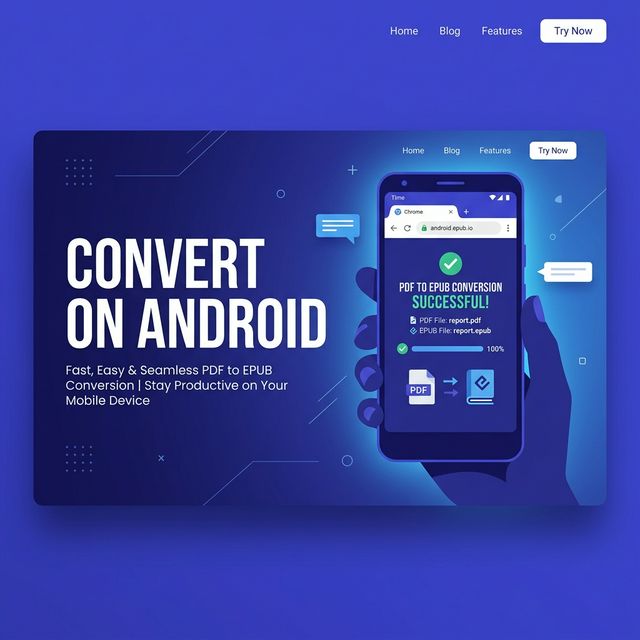
How to Convert PDF to EPUB on Android (Free Online Method)

You have a PDF on your Android phone that you want to read as an EPUB — in Google Play Books, Aldiko, or any other reading app. The problem is that Android does not convert PDF to EPUB natively, and most apps that claim to do it either cost money, produce poor quality, or require signing up.
The simplest solution is [Hosnet's free online PDF to EPUB converter](/pdf-to-epub). It works directly in Chrome on Android — no app install, no account, no cost.
How to Convert PDF to EPUB on Android — Step by Step
Step 1: Open Chrome and Go to the Converter
Open Chrome on your Android device and navigate to [hosnet.org/tools/pdf-to-epub](/tools/pdf-to-epub).
The page is fully mobile-optimized and works on any screen size — phones, tablets, and foldables.
Step 2: Upload Your PDF
Tap the upload area. Android will open a file picker. You can select your PDF from:
- **Downloads folder**: PDFs you downloaded from the web or email.
- **Google Drive**: Tap the menu and choose Google Drive to access cloud-stored files.
- **Gmail attachments**: Open the attachment in Gmail, tap Share, choose Chrome, and navigate to the converter.
- **WhatsApp/Telegram**: Save the PDF from the chat first, then upload from Downloads.
Select your PDF and wait for it to upload.
Step 3: Convert and Download
Tap **Convert to EPUB**. The conversion runs on Hosnet's servers — no processing load on your phone. It typically completes in 10-30 seconds.
When done, tap **Download EPUB**. The file saves to your Downloads folder automatically.
Step 4: Open the EPUB in a Reading App
Once downloaded, open a file manager and navigate to Downloads. Tap the EPUB file. Android will ask which app to open it with:
- **Google Play Books**: Excellent free reader with sync, highlights, and dark mode.
- **Aldiko**: Clean reader with good customization.
- **Moon+ Reader**: Feature-rich reader with many font and layout options.
If no EPUB reader is installed, Android will prompt you to find one in the Play Store. Google Play Books is the recommended choice — it is free, reliable, and handles EPUB well.
Reading EPUB in Google Play Books on Android
Google Play Books is likely already installed on your Android device. After opening the EPUB:
- **Adjust text size**: Tap Aa to change font size and type.
- **Dark mode**: Tap the moon icon for a dark background. Much easier on the eyes at night.
- **Night Light mode**: Reduces blue light for reading before sleep.
- **Highlights**: Long press any text to highlight it and add notes.
- **Reading progress**: Google Play Books tracks your reading position across devices.
These reading features are far superior to what you get viewing a PDF in a PDF viewer on Android.
Which PDFs Convert Best?
**Text-based PDFs** produce the best EPUB output. In Chrome on Android, you can test this: open the PDF and try to select some text with a long press. If you can select individual words, the PDF contains real text and will convert cleanly.
**Scanned PDFs** (photos of printed pages) do not convert well. They contain image data rather than text, so the EPUB output will be a series of images instead of readable text.
**Large PDFs** (100+ pages) may take longer but still convert correctly. If your PDF is a complete book, be patient — it may take a minute or two.
Converting to Kindle Format on Android
If you use the Kindle app on Android rather than Google Play Books:
- Convert your PDF to EPUB with [Hosnet's converter](/pdf-to-epub).
- Download the EPUB to your phone.
- Open the Kindle app and use Send to Kindle, or email the file to your personal Kindle email address.
Your book will appear in the Kindle library and sync across all your devices.
Android Apps That Claim to Convert PDF to EPUB — What to Know
The Play Store has many apps claiming to convert PDF to EPUB. Most of them have serious limitations:
- **Ads-heavy**: Many free converter apps show fullscreen ads after every conversion.
- **Poor quality**: In-app converters often strip formatting and lose images.
- **Privacy concerns**: Some apps request file access permissions and are unclear about data handling.
- **Size limits**: Many limit conversions to small files unless you pay.
A browser-based converter runs on a server rather than your phone, avoiding all of these issues. [Hosnet's converter](/pdf-to-epub) has no ads, no quality limits for standard files, and clear privacy practices — files are deleted automatically after conversion.
Frequently Asked Questions
Does this work on tablets?
Yes. The converter works on any Android device with Chrome. The larger screen on a tablet makes the experience more comfortable.
Is there a cost?
No. [The converter](/pdf-to-epub) is completely free with no registration.
Can I convert without a data connection?
No — the converter is online and requires an internet connection. The conversion runs on Hosnet's servers, not locally on your device.
My EPUB looks different from the PDF. Is that normal?
Yes. EPUB is reflowable — text adjusts to your screen size and font settings. The fixed page layout of the PDF is intentional for print but is replaced by a reading-optimized layout in EPUB. The actual content (text and images) is preserved.
The download did not start automatically. What do I do?
If the download did not trigger automatically, look for a download button on the page or check your browser's download notification. In Chrome, swipe up from the bottom to see recent downloads.
Start Reading Comfortably
PDFs on Android are frustrating. The fixed layout makes text tiny and forces constant zooming. Converting to EPUB takes less than two minutes and transforms the reading experience.
[Convert your PDF to EPUB now — free on Android](/pdf-to-epub). No app install, no account, no watermark.

No comments yet