You just finished installing the latest Kali Linux on VMware Workstation 17, everything seems perfect, but there is a major problem: The mouse cursor is invisible.
You can click, you can hover, but you can’t actually see where the pointer is. Don't worry, you don't need to reinstall anything or mess with terminal commands. It’s a hardware compatibility mismatch.
Here is the direct fix.
Why does this happen?
The latest virtual hardware versions (Workstation 17.x) sometimes don't play nice with the default graphics stack in Kali. Instead of troubleshooting complex drivers, we can simply adjust how VMware presents the hardware to the Guest OS.
The Solution: Change Hardware Compatibility
Follow these steps exactly. Note: Make sure your Virtual Machine is powered off before starting.
- Open VMware Workstation and select your Kali Linux VM.
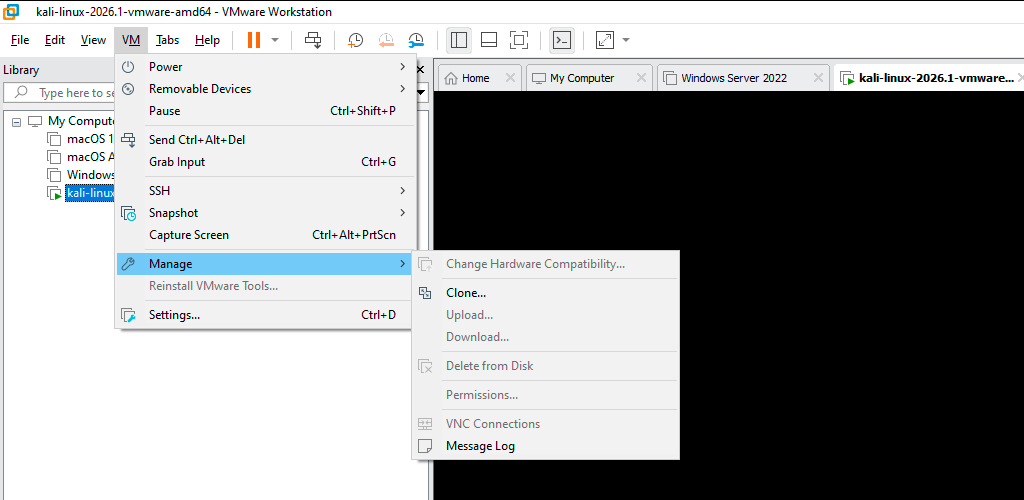
- Go to the top menu and select VM > Manage > Change Hardware Compatibility...
- The wizard will open. Click Next.
- In the "Hardware compatibility" dropdown, you can try selecting Workstation 16.2.x (or the version immediately preceding yours). Often, just re-running the wizard for the current version also refreshes the configuration and fixes the bug.
- Click Next.
- CRITICAL STEP: When asked to create a clone or alter the VM, select "Alter this virtual machine".
- Click Next and then Finish.
Now, power on your machine. Your mouse cursor should be visible and working perfectly from the login screen onwards.
Next Steps: User Configuration
Once you can actually see what you are doing, go ahead and finish your user setup.
Pro Tip: If you are still having issues (which is rare after this fix), ensure you have VMware Tools (open-vm-tools-desktop) installed by running: sudo apt update && sudo apt install -y open-vm-tools-desktop
But for 99% of cases in VMware 17, the Hardware Compatibility change is the "magic bullet".


No comments yet